


Your phone reports forty-thousand-odd photos. The laptop has three folders named some version of Pictures, one inside the other. There is a memory card from a camera you no longer charge, a shoebox of prints nobody has scanned, and a group chat where last summer’s good ones were shared and buried. None of that is unusual — it is what fifteen years of free-feeling storage produces.
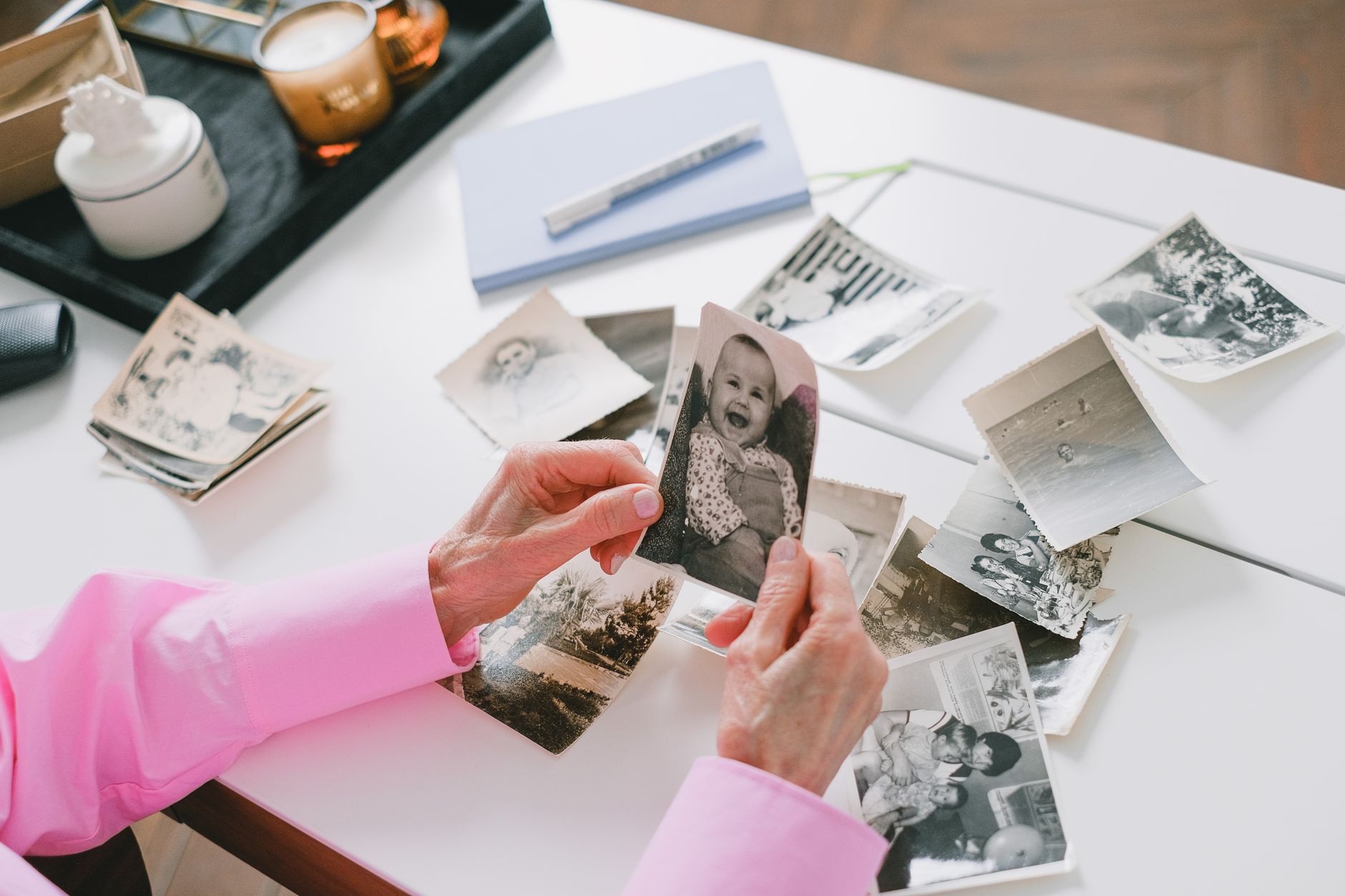
This is the workflow for turning that into a library you can search: find every photo you own, keep the ones that matter, name and file them so they survive a dead phone, and keep copies that do not all depend on the same login.
Organizing thousands of photos — short answer:
List every place your photos live, then work in year-sized batches. Keep the best version of each important shot, rename files with a date-first pattern, sort them into a two-level year and event structure, label people and pets so search can find them, and keep at least two copies in different places. Check the whole thing once a year.
Key terms, defined
Digital photo library: every photo you own, wherever it sits: phone, camera card, laptop, external drive, cloud account, old discs, and the group chat where relatives post pictures. It is the complete set, not the folder you open most often, and it is what has to be found, named, copied and checked.
Culling: choosing which photos stay in the library and which fall back to an archive. It is not deleting: you keep the strongest version of each important picture — the highest resolution of a duplicate — and stop treating the rest as part of the set you maintain.
Descriptive file name: a name that says who, what and when without opening the file: 2024-07-12-wedding-ana-tom-014. It sorts chronologically on its own, survives being moved between folders and computers, and can be found later by a search that matches text rather than by clicking through years of folders.
Metadata: the information the camera or phone writes inside the file itself: capture date, camera model, size, location. It travels with the photo, which is why search can sort by date and device even when names are meaningless — and why metadata is a safety net, not a filing system.
Photo inventory: a short written list of where your photos live, what each folder or account holds, and where the copies are kept. The Library of Congress recommends keeping a copy with your important papers: it tells you, or anyone helping you, what exists and where to look after a failure.
Key Takeaways
- The library is everywhere: cards, laptops, drives, cloud accounts and group chats all count — inventory first.
- Keep the best version, not every version: the sharpest frame of a burst, the highest resolution of a duplicate.
- Names and folders beat memory: date-first descriptive names sort themselves and survive a move.
- Labels let search do the work: people and pets are worth labeling once, not per photo.
- Two copies, different places: one can stay at home, one goes as far away as is practical.
- Re-check yearly, refresh media every five years: a copy nobody has opened is a copy nobody knows works.
Why Photo Libraries Get Out of Hand
The scale explains most of it. A 2025 study in Frontiers in Psychology, citing Photutorial’s count, puts 2024 at 1.94 trillion photos taken worldwide — roughly 5.3 billion a day — with about 14.3 trillion photos already in existence. No household keeps up with that by hand, and no vendor asks you to: capture is one tap, and keeping feels free until the storage limit arrives.
The study also gives the reasons a name. It found that emotional attachment, fear of missing out, interpersonal influence, life demand, and technological progress all matter, with attachment and the fear of missing out carrying the effect between need and behavior. The mechanism is simpler than the labels: when there is too much to judge, people who feel inability to organize and process the information they encounter keep everything rather than filter it.
Nothing forces a decision the way physical clutter does — there is no hallway to trip over, so the cost moves from space to time and risk: the ten minutes spent scrolling for one photo, the account that quietly fills, the card formatted before anyone checked it. For the phone-shaped version of the same problem, when the phone itself is draining your attention is the companion read; this assumes you have decided to sort the library.
Step 1: Find Every Photo You Own
Start with a list, not a folder. The Library of Congress suggests you Identify all your digital photos on cameras, computers and removable media, and to Include your photos on the Web — which today means the cloud account, the shared album, and the message thread where relatives post pictures you never saved.
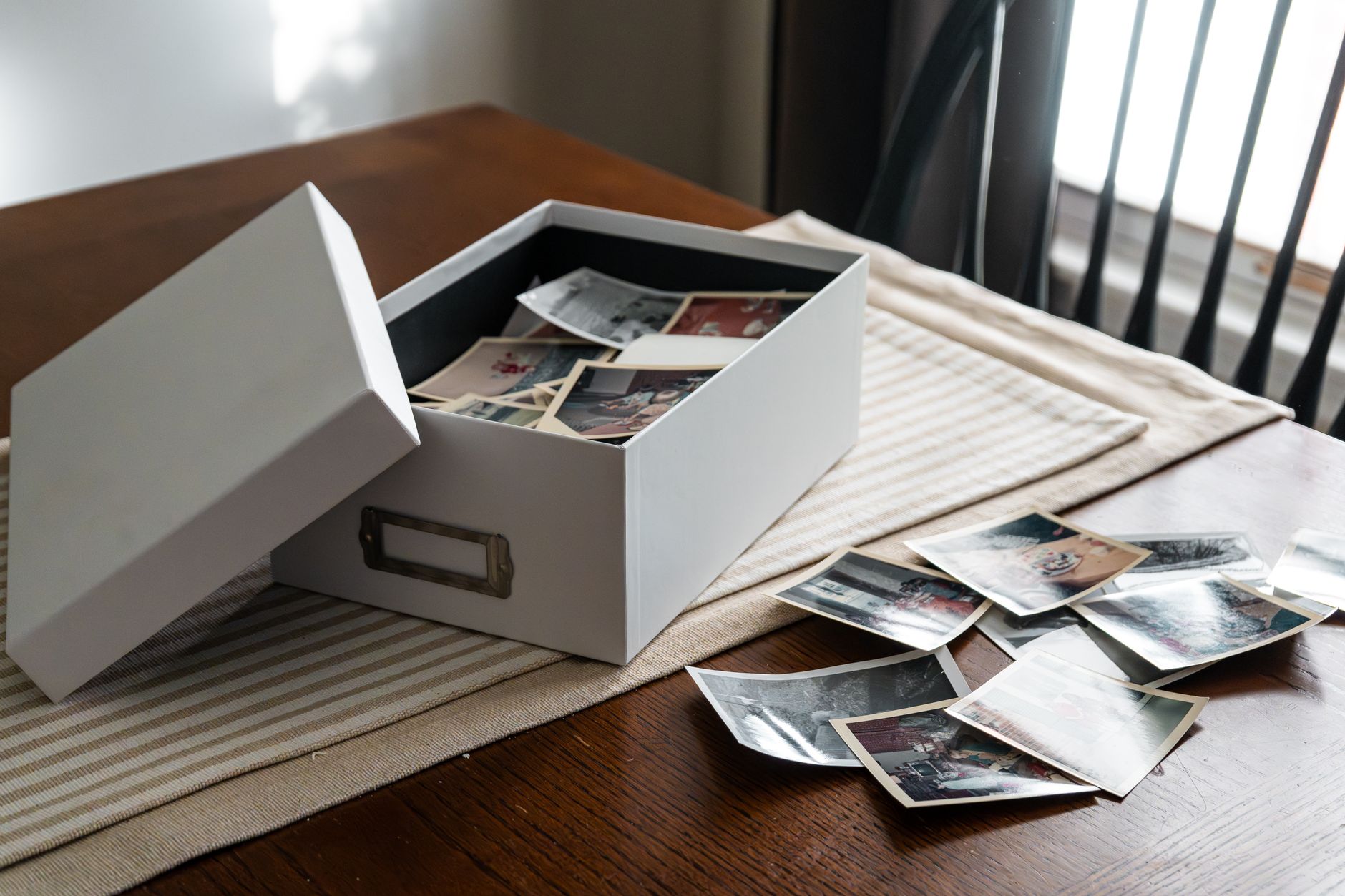
Write the inventory down: phone, camera cards, laptop, external drives, cloud accounts, old discs, group chats, the prints in the shoebox. Note next to each whether it is the only copy or already synced somewhere — the point of this step is discovering how many duplicates you maintain without knowing. If the shoebox is part of the job, the paper side has its own guide, how to run a scanning session that finishes, and it is worth doing first so the scans land in a library that is ready for them.
Step 2: Keep the Best, Archive the Rest
Selection is the step everyone skips, and skipping it is why libraries stay unmanageable. The Library of Congress is direct: Decide which photos are most important, and If there are multiple versions of an important photo, save the one with highest quality. That single rule removes most of the volume — bursts, near-duplicates and re-saved copies collapse into one keeper each.
Work in year-sized batches, newest first. Within a batch, judge each cluster of near-identical shots: is one frame clearly sharper or better composed, would you print or send it, does it hold information you might need — a document, a house before a renovation, a face you would otherwise lose? One yes means one keeper; everything else moves to an archive folder rather than the bin, so the decision stays reversible. A workable test for the keeper set is the one a fire makes for you: which pictures would you be upset to lose?
Step 3: Name Files So You Can Find Them
File names are the cheapest search index you will ever build. The Library of Congress recommends that you Give individual photos descriptive file names and Tag photos with names of people and descriptive subjects — the first is the part you do by hand.
Date first, then the event, then a sequence number. That order sorts correctly in every file browser, and it stays unique when two cameras shoot the same afternoon:
| What it is | Pattern | Example |
|---|---|---|
| The whole library | YYYY | 2024 |
| One event | YYYY-MM-DD-event | 2024-07-12-wedding-ana-tom |
| One photo | YYYY-MM-DD-event-### | 2024-07-12-wedding-ana-tom-014.jpg |
| A scanned print | YYYY-approx-subject-### | 1987-approx-porch-grandma-002.jpg |
The payoff is in search: quoted searches can return exact-text matches in filenames, camera models, captions, or text within photos, so a name you can describe is a name you can find later — and duplicates become obvious, because two copies of one picture no longer look like two unrelated files.
Step 4: Build a Folder Structure That Survives
Two levels are enough: year, then event. Create a directory/folder structure on your computer, keep it shallow, and use exactly the same structure on every copy so a restore is not a sorting job of its own. Deeper nesting feels organized and behaves badly — the third level is where photos go to be lost.
Then write the map. The Library of Congress suggests you Write a brief description of the directory structure and the photos, and that short document is the inventory from the definitions: what exists, what each folder holds, where the copies live. Keep it with your important papers — it is what makes the library legible to anyone who is not you.
Step 5: Let the Machine Tag What You Cannot
You will not hand-tag 40,000 photos, and you do not need to. Face grouping lets you apply a label to people or pets once and have the group follow that person through the library; if a relative ends up split across two groups, If the same person is in more than one grouping, you can merge them. Duplicate groups for one face are the feature’s normal state, not a failure.
Two cautions. Only you can find the private face labels you choose — they live in your account, not inside the files, so they do not travel with a copy to a new service. Availability also varies by region, domain and account type, and turning the feature off deletes the groups, models and labels. Search is just as conditional: You can only search with a name or nickname if you have labeled that person or pet.
Step 6: Keep Copies in Different Places
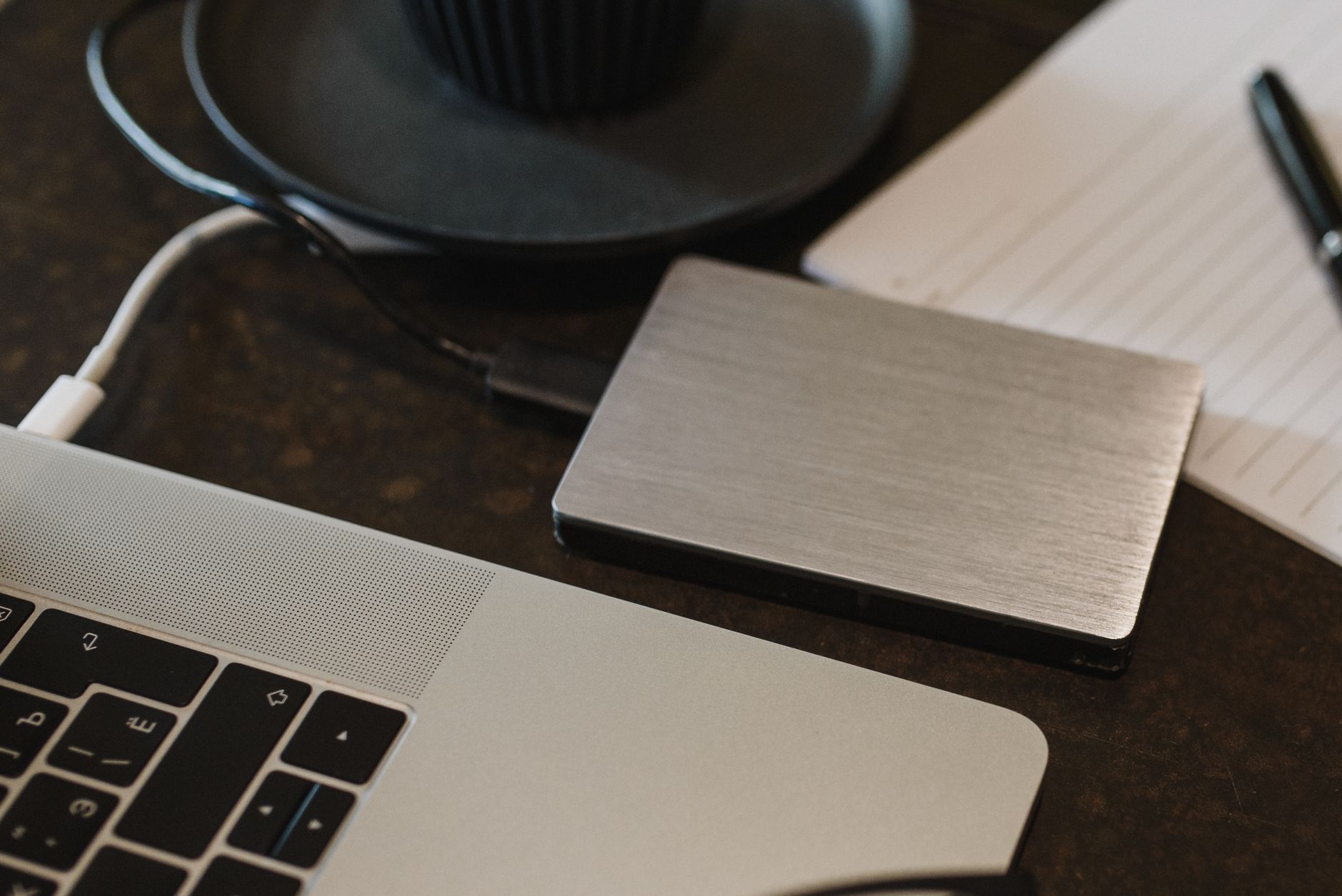
This is the part that turns a tidy library into a durable one. Make at least two copies of your selected photos — more is better — and Store copies in different locations that are as physically far apart as practical. One copy stays with the computer; the second goes on a portable drive or a cloud account kept elsewhere. Then Check your photos at least once a year to confirm they still open, and Create new media copies every five years or sooner if the drives are aging.
Treat the cloud as one copy, not the plan. Backups go to only one Google Account at a time, and the account’s storage is shared across multiple products — mail, documents and photos draw on one quota, so a full account stops taking new photos without announcing it. Individual files have ceilings too: Photos up to 200 MB or 200 MP in Google’s case, which matters if you shoot RAW.
A practical split: a working copy synced from your phone to a cloud account, a full-resolution copy on a drive at home, and a third drive kept somewhere else and refreshed when you visit. The yearly check is what makes it real — plug each copy in, open a folder from a few different years, confirm the files are what you think.
EXIF, HEIC, RAW and the Rule Behind the Backups
The six steps work without a word of jargon, but four terms turn up the moment you open a file’s properties or plug in an old camera card. Each one is a label for something you have already decided — what the camera recorded, what the file holds, and how many places that file exists in. Knowing them is what stops a step from quietly undoing itself. The one thing no format fixes is the shoebox of prints, which is a sentimental-items question rather than a file one: decluttering sentimental items without guilt is where to take that pile.
EXIF: the Camera Writes the Date Into the File
EXIF, short for Exchangeable Image File Format, is the technical metadata a camera attaches to a photo, and the Library of Congress describes it as mainly intended for recording technical details associated with digital photography. It is an extension of the JPEG or TIFF underneath, and because almost every digital camera writes it, the date you never typed is already attached to a photo taken in 2009.
That is the quiet machinery behind Step 3 and Step 5. Date-first file names work because the camera recorded the moment; automatic labels work because it recorded the lens, the exposure and often the coordinates. Two consequences follow. A photo that has passed through a chat app or been screenshotted comes back with its EXIF stripped, which is why a re-saved image loses both its date and its place in the sort. And the location travels with the file everywhere the file goes, so strip it before you post a picture taken at a child’s school or inside your home — most phones offer to do exactly that when you share.
HEIC, JPEG and RAW: What the Extension Tells You
Three formats cover almost every photo you own, and they are not interchangeable. The first is the one Apple explains plainly: HEIF and HEVC offer better compression than JPEG and H.264, so they take less room on the phone and in iCloud while keeping the same visual quality. HEIC is what an iPhone writes by default for exactly that reason. JPEG is the format everything on earth can open. RAW is neither of those: a file that contains unprocessed data straight from a digital camera. There is no single raw format — each maker uses its own proprietary, typically undocumented version — so nobody sees one until software converts it.
The rule that follows is short: archive the original, share a copy. Keep the HEIC or the RAW where it came off the camera, and export a JPEG when a person, a printer or a website needs to see it. Do not convert and delete — a converted copy is a second file, not a replacement, and the original is the one carrying the detail. If it is your own devices that choke on HEIC, the iPhone camera settings offer a Most Compatible option that writes JPEG instead: switch it before a wedding, not after.
Where the 3-2-1 Rule and a NAS Fit
Step 6 is the 3-2-1 rule with the name left off: three copies of your data on two different media with one copy off-site. Backblaze, which has been explaining the rule for years, refines the middle digit for the cloud era — what matters now is two different devices rather than two kinds of media, since a drive and a cloud account already are two devices.
A NAS is the upgrade most photo libraries eventually want: a dedicated storage device that enables multiple users to store and share files from a central location through wifi or Ethernet. One box of drives in the house, reachable from every laptop, sized for the archive rather than for this year. It is a good second copy and a dangerous sole plan, because it sits in the same building as the originals and you are the one maintaining it. A fire, a flood or a burglary takes the NAS and the laptop together, which is why the box can never be the off-site copy in the rule — treat it as the local half and keep the third copy somewhere else.
| The digit | What it means for photos |
|---|---|
| Three copies | The original plus two more — a drive at home and a copy somewhere else. |
| Two different devices | Two folders on one laptop do not count. A drive and a cloud account do. |
| One copy off-site | Far enough that one fire, flood or theft cannot reach it. The cloud is the simplest version. |
Four terms, one idea: the camera has been keeping notes for you, the extension tells you what you are holding, and 3-2-1 tells you how many places it has to exist in before you can stop worrying about it.
The Order to Do It In
Six steps, and the sequence matters more than the speed:
- Inventory: list every place photos live, and mark which are the only copy.
- Select: one keeper per important cluster, archive the rest, newest year first.
- Name: date-first descriptive file names, sequence numbers for repeats.
- Structure: year, then event — the same two levels on every copy.
- Label: people and pets once, then let search carry the rest.
- Copy: at least two copies, different media, different places, checked yearly.
Each step makes the next cheaper: an inventory stops you reorganizing a duplicate, selection shrinks the naming job, names make the structure obvious, and structure makes the copies verifiable. Doing them out of order is what turns this into a project that never finishes.
What to Do With Duplicates and Bad Shots
Duplicates are a naming problem before they are a deletion problem. Once files are date-first and sequenced, identical copies announce themselves, and you can keep the highest resolution and archive the other. Delete only after the copies in Step 6 are verified — the order protects you from a culling session that turns out to hold the only copy.
Bad shots deserve a lower bar than people expect. A soft, badly framed picture of someone you love is still the only picture of that day, so it stays in the archive. What earns deletion is genuinely worthless: pocket shots, screenshots of things you no longer need, the ninth identical frame of a stationary dog. When it is unclear, archive — the archive is allowed to be messy, because it is not the set you maintain.
Frequently Asked Questions
The same handful of questions come up once the library has a shape — here are the direct answers.
How do I organize thousands of photos without getting overwhelmed?
Do not start with the whole library. Write the inventory first — every card, drive, laptop and account — then work one year at a time, newest first, because recent photos are the ones you are most likely to want. Each batch goes through the same three moves: keep the best version, rename, file. A library finished year by year gets finished.
Should I delete duplicates and bad photos?
Not before the copies exist. Verify that two complete copies are readable, then cull: one keeper per burst, the highest resolution of each duplicate, everything else into an archive folder rather than the bin. The Library of Congress advice is to save the one highest-quality version of an important photo — a better rule than keeping every variant because you cannot decide.
What is the best file naming convention for photos?
Date first, then who or what, then a sequence number: 2024-07-12-wedding-ana-tom-014.jpg. Dates sort correctly on their own and stay unique across devices. Descriptive names also become searchable, since quoted searches match filenames — which is why a meaningful name earns the few seconds it costs.
Do I have to tag or label every photo by hand?
No. Label the people and pets once and the grouping does the rest; that is what face groups are for, and the labels are private to your account. Places and things are inferred from metadata and image content. Treat labels as a convenience layer over your files: useful daily, but not part of the archive itself.
How many backups does a photo library need?
At least two copies, on separate media, in locations as far apart as is practical — the Library of Congress’s own wording. One copy stays on your computer; the second goes on a drive or cloud account kept somewhere else. Then check that the copies still open at least once a year, and move them to new media about every five years.
Is cloud storage enough on its own?
It is one copy, not the plan. A cloud account is tied to a single login, backups go to one account at a time, and the quota is shared with mail and documents — so a full account quietly stops backing up new photos. Keep a local copy you control, and treat the cloud as the copy that survives a house fire.
Start This Weekend
Spend thirty minutes on the inventory and nothing else: every card, drive, laptop, account and chat, written down, with a note on which are the only copies. Then pick one year — the most recent is easiest — and run it through select, name and file. That is one batch, which is the whole method at small scale.
The rest of the library does not need a free weekend. It needs the same thirty minutes repeated until the years run out, and a yearly reminder to open the copies and make sure they still work.